Bookings on your website
A booking form for your own campsite website
Your website tells guests why they would enjoy staying with you. Add a LycamPe booking form so they can reserve a stay from your site. Continue managing your pitches, prices and available dates in one place in LycamPe.
Create an account and add your campsite step by step.
At a glance
Your website and pitches, connected
Keep your website
Your own words, photos and style stay in place.
Your own pitches
Let guests choose from the pitches you offer on LycamPe.
Your website address
Specify which website the form may appear on.
Try it yourself
Check the form on your phone too.
Take a closer look at LycamPe
How guests book through your website
The booking form can appear within your own website. Guests choose their dates and a suitable pitch and see the price breakdown before completing their booking.

A screenshot of the real LycamPe interface using test data. Names, bookings and amounts are fictional. The interface shown is in Dutch.
Example photos taken in the Netherlands, via Unsplash: Geert Rozendom / Haberdoedas · Photo sources and licence
View the larger image (new tab)From discovering your campsite to booking a pitch
Your own words and photos show guests what to expect. Place the booking form where visitors want to reserve a stay. It shows the pitches, prices and available dates you maintain in LycamPe.
The form appears on your own website, with bookings handled through LycamPe. You can keep your existing website and the information already on it.
Add your website address
Your campsite must be published on LycamPe before you can use the form. In your campsite settings, specify the website address where it may appear. You will also find the code to add it to your website there.
Check the address visitors use, for example with or without www. The form only works on the website addresses you have allowed. Share this information with whoever looks after your website.
Have the form added to your website
Does someone else manage your site? Give them the code from your campsite settings. Agree where the form should appear, for example on the page where guests already look for booking information.
Not every website system allows these forms without changes. The person maintaining your site can check and add the form for you. Afterwards, look at the page together to make sure everything fits on screen.
Take a closer look at LycamPe
Your website booking settings in one place
In Booking channels, add your website domain and find the iframe code. You or your website manager can add that code to your site. Then check that the form opens correctly.
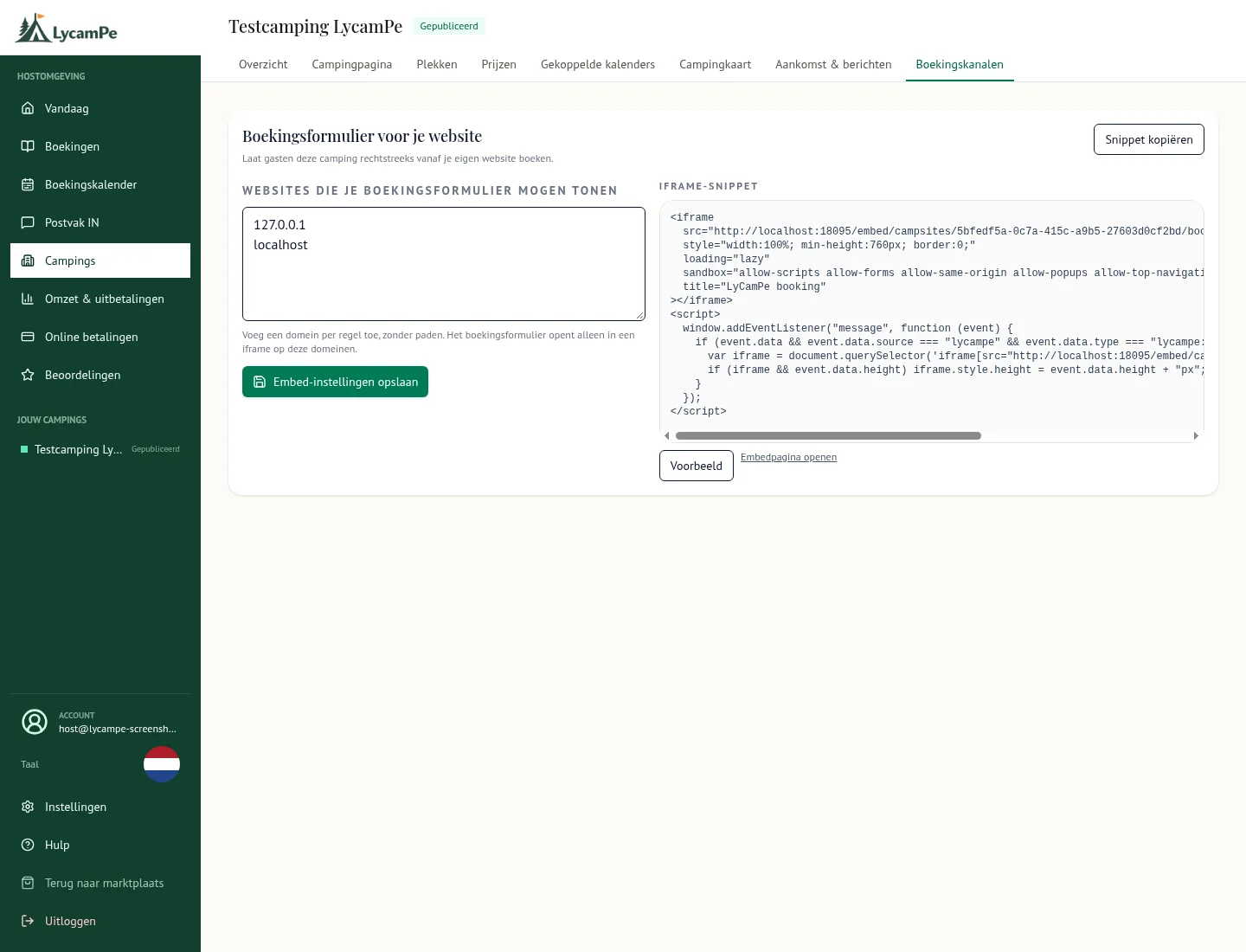
A screenshot of the real LycamPe interface using test data. Names, bookings and amounts are fictional. The interface shown is in Dutch.
View the larger image (new tab)Add it to your website in four steps
You do not need to understand the code yourself. You can follow these steps with the person who looks after your website.
- Log in, open your campsite in the host dashboard and find the section for bookings on your own website. Your campsite needs to be published on LycamPe.
- Enter the address of your secure (https) website where the form will appear and save it. If visitors use addresses both with and without www, add both.
- Copy the booking form code and have it added to the page you want. Whoever maintains your website can check whether your website system allows it.
- Open that page on a phone and a computer. Choose dates and a pitch, then check the price and the next booking step. If the form does not appear, first check that the website address matches the one you saved.
Manage available pitches in one place
The form uses your campsite and pitch details from LycamPe. If you change prices or available dates there, your website form uses those same details. You do not need to maintain a separate list for it.
Agree a stay by phone? Add that reservation yourself in LycamPe. Record any pitches you close temporarily there too. That keeps the form on your website in line with your planning.
Try making a reservation yourself
Look at the form on your phone and a computer. Can you choose the dates and a pitch? Is the price clear? Can you move on to the next step? Go through it before directing guests to the form.
Also check that you have entered the details for online payments and completed the required checks. That helps you establish both that the form is visible and that your campsite is ready to accept bookings.
Stay available for questions
Sometimes a guest wants to ask about a pitch, access or a facility first. Keep your contact details near the booking form so they can reach you before making a reservation.
Start with an account and add your campsite for free. If your campsite is already in LycamPe, log in to prepare the form for your website. The person maintaining your site can then help you add it.
Ready to get your campsite started?
Listing your campsite is completely free. Create an account and add your photos, pitches and prices.